
Before switching to a trackball, ask yourself if its ergonomic design reduces strain for your long work sessions and matches your workspace. Consider if you’ll benefit from customizable buttons and sensitivity adjustments to improve productivity. You should also evaluate if the device provides the precision needed for your tasks and fits your familiarity level. If you’re willing to adapt, exploring these questions will help you determine if a trackball aligns with your workflow and comfort needs.
Key Takeaways
- Does the trackball offer ergonomic benefits that reduce strain during long work sessions?
- Are the device’s customization options compatible with your workflow and software needs?
- Is the precision and control sufficient for demanding tasks and professional software?
- How steep is the learning curve, and will it fit your workspace environment?
- Does the device align with your long-term comfort, productivity goals, and adaptability preferences?
Have you ever wondered why some trackball enthusiasts swear by its precision and efficiency while others question its practicality? If you’re considering switching to a trackball, it’s essential to ask yourself whether it truly fits your work style and needs. One key aspect to evaluate is the ergonomic benefits. Unlike traditional mice that require you to move your arm and wrist, a well-designed trackball stays stationary, reducing strain on your shoulder, elbow, and wrist. This can be a game-changer if you spend long hours at your desk or suffer from repetitive strain injuries. However, not all trackballs are created equal—some models are designed with ergonomic comfort in mind, featuring a shape that fits your hand comfortably and minimizes fatigue. If comfort is a priority, you’ll want to test different shapes and sizes to find one that offers maximum ergonomic benefits, making sure you can work longer without discomfort.
Another vital question to ask is whether the device offers enough customization options. Trackballs often come with programmable buttons, adjustable sensitivity, and customizable scrolling features. These options allow you to tailor the device precisely to your workflow, whether you’re editing photos, designing 3D models, or managing large spreadsheets. If a trackball lacks sufficient customization, you might find yourself fighting the device rather than working with it. For power users, the ability to assign shortcuts or macros to specific buttons can greatly boost productivity, making repetitive tasks quicker and easier. Before switching, check if the trackball’s software supports your needs and integrates well with your operating system. Also, consider whether the device allows for adjustments in cursor speed and acceleration—features that can make a noticeable difference in your efficiency. Additionally, understanding the importance of precision and control can help you determine if a trackball is the right tool for your demanding tasks. Moreover, compatibility with professional software can significantly influence your overall experience and effectiveness when using a trackball for specialized work. In line with these considerations, it’s also beneficial to explore ergonomic design principles to ensure that the device can truly support sustained comfort during prolonged use. Taking into account the learning curve involved can help you decide if you’re prepared to invest the necessary time to master its use, especially if you’re switching from a traditional mouse.
Beyond comfort and customization, think about the learning curve involved. Trackballs often require a different set of skills compared to traditional mice. For seasoned users, that learning curve might be a worthwhile investment, but if you’re impatient or need immediate productivity, it’s worth considering how much time you’ll need to adapt. Additionally, evaluate how well the trackball suits your workspace environment, especially if you work in tight spaces or have limited desk area.
Ultimately, switching to a trackball isn’t simply about trying a new gadget; it’s about evaluating whether its ergonomic benefits and customization options align with your specific demands. If you’re willing to adapt and prioritize comfort and control, a good trackball could be your new best tool. But don’t jump in blindly—ask these questions first, and make sure it’s the right fit for your workflow.

Logitech Ergo M575S Wireless Bluetooth Trackball Mouse – Graphite Blue Ball
- Ergonomic Design: Supports natural hand and forearm posture
- Quiet Clicks: Reduces noise during use
- Precise Thumb Control: Smooth, accurate tracking with thumb
As an affiliate, we earn on qualifying purchases.
As an affiliate, we earn on qualifying purchases.
Frequently Asked Questions
How Does Trackball Sensitivity Affect Long-Term Ergonomics?
Adjusting trackball sensitivity impacts your long-term ergonomics by reducing strain and preventing repetitive stress injuries. Higher sensitivity allows you to move the cursor with minimal wrist movement, promoting ergonomic benefits. Conversely, lower sensitivity may cause you to make larger hand movements, increasing fatigue. Regular sensitivity adjustments guarantee you find a comfortable setting, helping you maintain proper hand positioning and avoid discomfort during extended use.
Can Trackballs Be Customized for Specific Professional Workflows?
Imagine your hand gliding smoothly over a customized trackball, perfectly aligned with your workflow. Yes, you can tailor trackballs for specific professional tasks by adjusting ergonomic design features and input precision settings. Customization options like button remapping, sensitivity tweaks, and ergonomic shapes help streamline your work. This personalized setup reduces fatigue and enhances efficiency, making your workflow seamless and comfortable, whether you’re editing photos, managing data, or designing complex graphics.
What Are the Maintenance Requirements for High-End Trackballs?
High-end trackballs require regular maintenance to guarantee durability and smooth operation. You should follow consistent cleaning routines, such as removing dust and debris from the ball and sensors, and using appropriate cleaning solutions. This helps maintain trackball durability and prevents tracking issues. Additionally, check for wear on the buttons and scroll wheel, replacing parts if necessary. Proper maintenance keeps your high-end trackball performing at its best for years.
How Do Trackballs Compare to Touchpads for Multi-Monitor Setups?
You’ll find that trackballs excel in multi-monitor setups because gesture customization and software integration make navigation smoother. Unlike touchpads, trackballs provide precise control without needing to move your hand across multiple screens. With customizable gestures, you can switch between monitors or open applications quickly. This setup reduces fatigue and increases efficiency, making trackballs a better choice if you’re managing multiple displays and want seamless, tailored control.
Are There Compatibility Issues With Certain Operating Systems?
You might face some compatibility issues with certain operating systems, especially if software compatibility or hardware integration isn’t seamless. Check if your OS supports the trackball’s drivers and software before switching. Some models work better with Windows, while others are compatible with macOS or Linux. Ensuring your trackball’s software updates are current will help prevent issues, and verifying hardware integration will smooth your shift and improve overall performance.

ELECOM HUGE Trackball, 2.4GHz Wireless USB, Index Finger Control, Customizable 8-Button, Large Soft Palm Rest, 52mm Ball, Windows PC Mac (M-HT1DRBK)
- Optical Tracking Technology: Precise cursor movement for accuracy
- 8 Programmable Buttons: Includes scroll wheel tilt for horizontal scrolling
- Adjustable DPI Settings: Switch between 500, 1000, 1500 DPI
As an affiliate, we earn on qualifying purchases.
As an affiliate, we earn on qualifying purchases.
Conclusion
Before switching to a trackball, ask yourself if you’re ready to embrace a different way of steering. Some might worry about the learning curve, but with patience, you’ll find it becomes second nature—offering precision and comfort that far outweighs initial adjustment. Don’t let fear of change hold you back; once you experience the improved control, you’ll wonder how you ever worked without it. Embrace the switch and elevate your workflow today.

55mm Trackball Ball, High-Gloss Precision Compatible with Kensington SlimBlade Pro, Expert Mouse Wired & Wireless, Nulea M512, Sanwa MA-TB38, and Ploopy Adept – Black, Red, Green, Purple (Green)
- Universal 55mm Compatibility: Fits high-end finger-operated mice
- Not fully compatible with PMW3610: Requires perfect lens for PMW3610
- Optical Precision Material: High-grade resin for smooth tracking
As an affiliate, we earn on qualifying purchases.
As an affiliate, we earn on qualifying purchases.
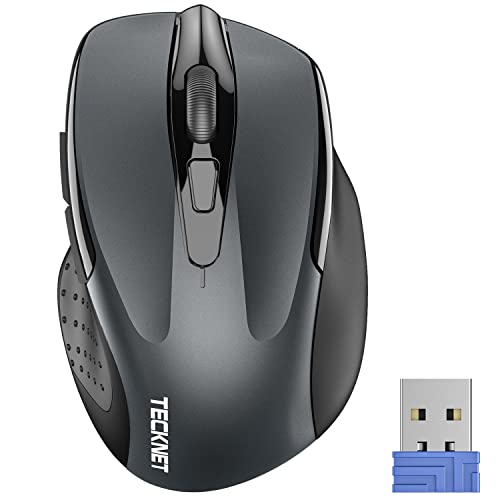
TECKNET Wireless Mouse, 2.4G Ergonomic Computer Mouse, 2600 DPI, Grey
- Compact and Travel-Friendly: Dimensions: 4.09*2.68*1.49 inches
- Ergonomic Comfort Design: Contoured shape with rubber side-grips
- Adjustable DPI Settings: 5 levels from 800 to 2600 DPI
As an affiliate, we earn on qualifying purchases.
As an affiliate, we earn on qualifying purchases.